Probes
Probes capture Unity's runtime environment around your code (scene loads, object lifecycle, coroutines, animator transitions, hierarchy changes, and resource activity) so timing bugs between systems become visible instead of buried in Console noise.
What Probes answer
If Watches explain what value changed, Probes explain what the world was doing when it changed.
flowchart LR
    subgraph Code
        T[Tracking]
        W[Watches]
    end
    subgraph Environment
        P[Probes]
    end
    T --> R[Report]
    W --> R
    P --> R
Probe categories in the Scenario workspace
Enable categories on the Scenario Probes panel before recording. Each enabled category becomes activity you can inspect in Probe Map and Timeline Probes modules.
| Category toggle | What it captures |
|---|---|
| Instantiate | Object instantiation |
| Destroy | Object destruction |
| Scene | Scene load, unload, active scene changes |
| Component | Component enable/disable, GameObject activate/deactivate |
| Coroutine | Coroutine started and stopped |
| Animator | Animator play/crossfade and state enter/exit (when StateMachineBehaviour is present) |
| Hierarchy | Transform parent changes, component added/removed |
| Resource | Resources and AssetBundle load/unload events |
| Addressables | Load, release, instantiate (when Addressables package is present) |
| Physics | Toggle exists; capture is not supported in the current release, so do not expect Physics lane data |
Input and Custom categories exist in the probe model but are not seeded in standard Scenario defaults.
Supported probe kinds (detail)
When a category is enabled, TraceMind records specific event kinds including:
Scene: Scene Loaded, Scene Unloaded, Active Scene Changed
Object: Object Instantiated, Object Destroyed
Component: Component Enabled/Disabled, GameObject Activated/Deactivated
Coroutine: Coroutine Started, Coroutine Stopped
Animator: Animator Play, Animator CrossFade, Animator State Entered, Animator State Exited
Hierarchy: Transform Parent Changed, Component Added, Component Removed
Resource: Resource loaded/unloaded, async load started/completed, Resources unload unused, AssetBundle open/load/unload events
Addressables: Load started/completed, Release, Instantiate started/completed
Configuring Probes
Open the Scenario
Probes are per-Scenario, like Tracking and Watches.
Enable only relevant categories
A race with scene loading needs Scene; a destroy-order bug needs Destroy; animator-driven state needs Animator.
Record and open Probe Map
Scrub to the symptom window and read lane activity beside Watch and execution data.
Selectivity keeps Probe Map readable
Enabling every category on the first take often produces noise. Enable what your bug can touch, then add lanes on the next recording if evidence is missing.
Probe Map
Probe Map is the dedicated lane timeline for probe activity. Open it from the Report toolbar or Go → Probe Map.
Features include category filters, search ("Filter objects, coroutines, scenes…"), playback controls, Follow playhead, and analysis/inspector panes aligned with the Report Timeline.
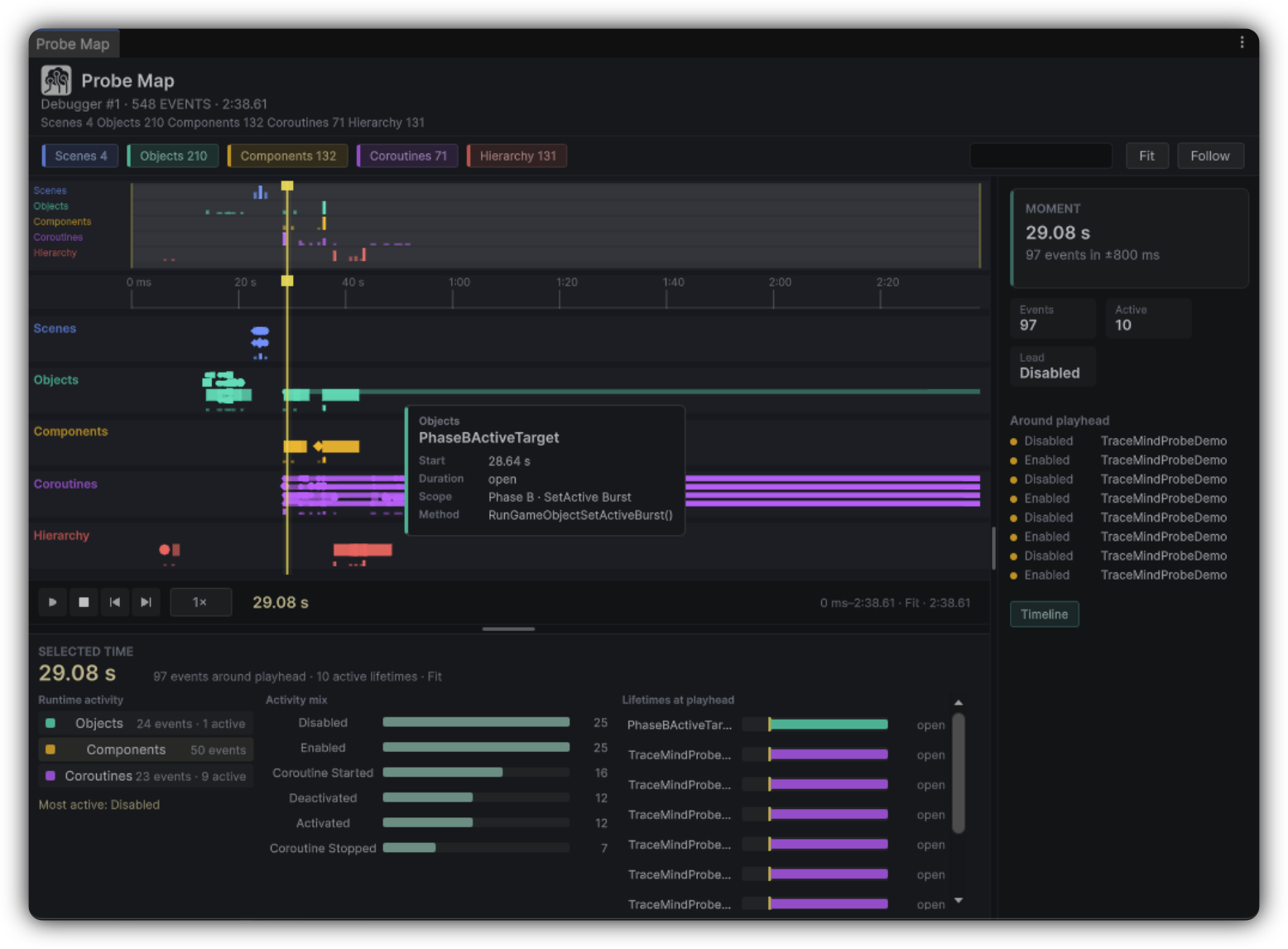
Reading probe activity
| If you see… | Consider… |
|---|---|
| Scene load immediately before a bad write | Initialization order or stale state from previous scene |
| Destroy before a null reference | Object lifetime race |
| Coroutine start without matching stop | Hung or overlapping coroutine logic |
| Animator state exit without expected enter | Transition conditions or layer weights |
| Resource async completed after symptom | Async loading timing |
Pin decisive observations to MindBoard as Probe or ProbeObservation references.